Supaviral Ads
Getting Started With Supaviral: Your First AI Video
Learn a simple Supaviral workflow: prepare your assets, open Studio, choose a supported model, write a clear prompt, and review your generation.
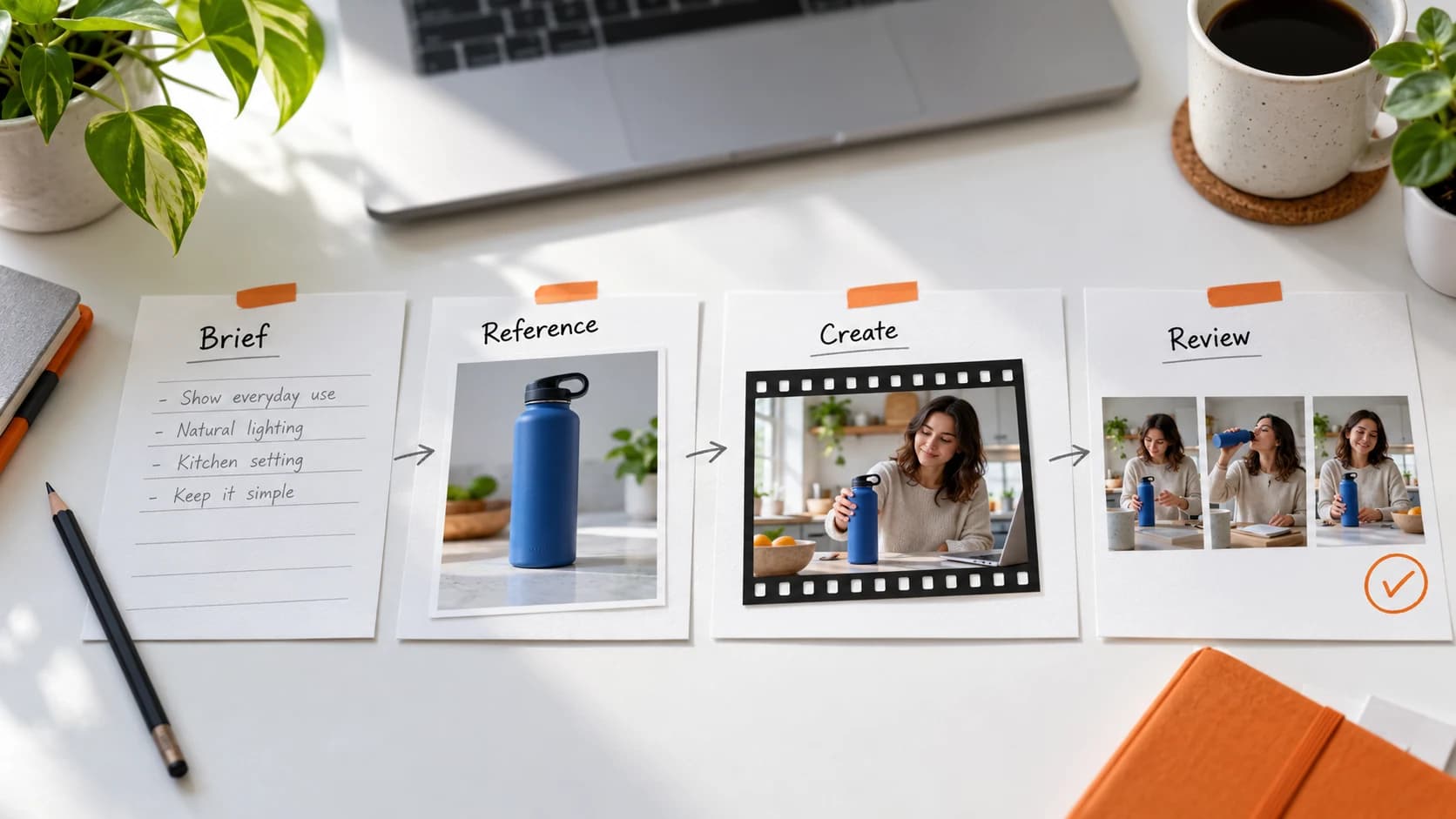
Your first generation should answer one question: can you create a useful shot for your product or idea? Keep the brief small, use a clear reference when needed, and review the result before investing in more variations.
1. Start With A Small Creative Brief
Choose a product, an audience, and a single message. “An everyday water jug for people who train outdoors” gives you a more useful starting point than “make a viral ad.” Decide what the viewer should see and what you want them to do next.
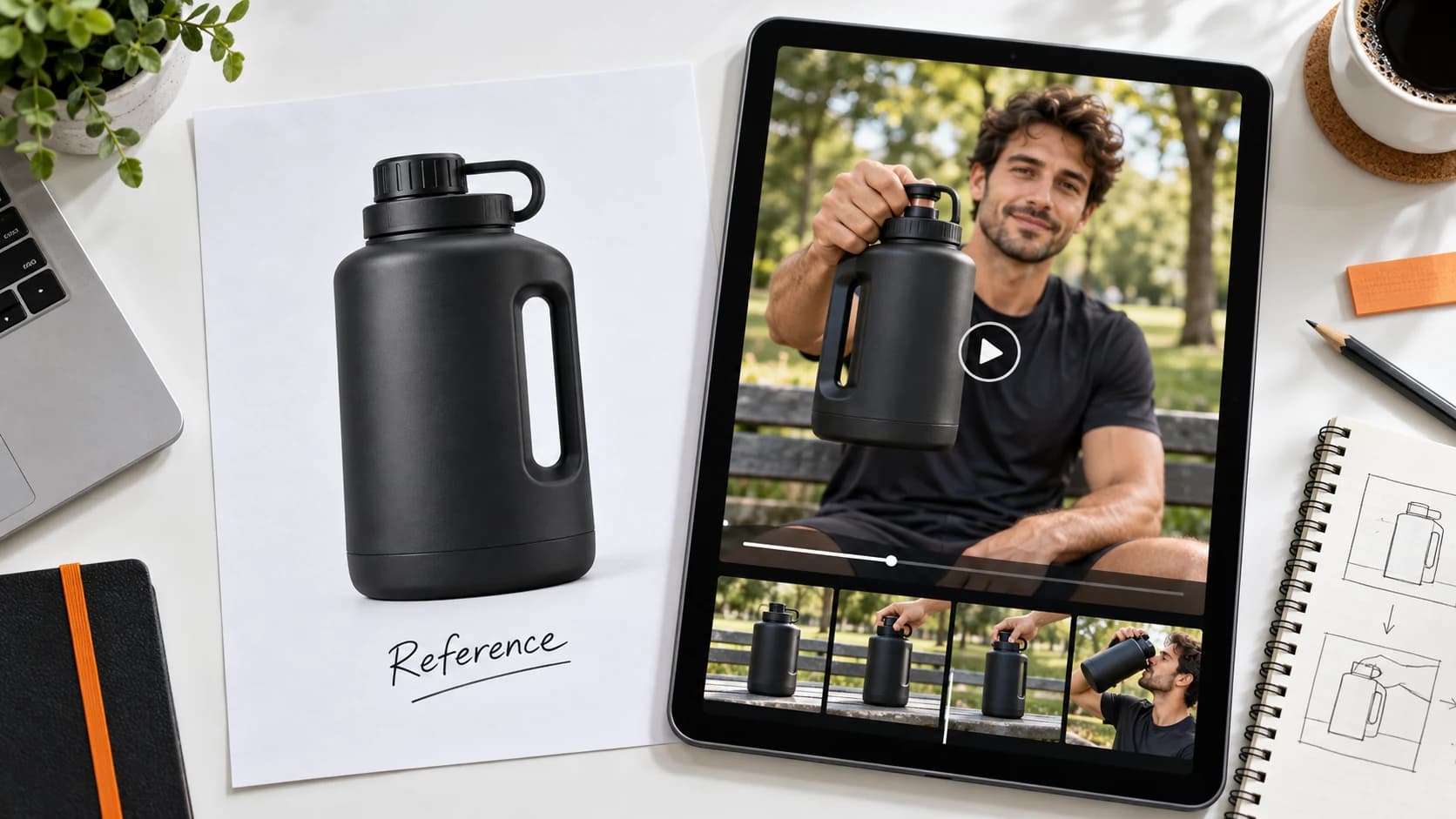
Collect any product photos or visual references you plan to use. Use assets you own or have permission to use. If you do not have a reference yet, begin with a text-only scene that does not depend on exact product details.
2. Open Studio And Choose Your Generation
Open Supaviral Studio from Start Creating. Sign in and complete any required onboarding to reach your workspace. You can explore Studio, Canvas, Templates, and Assets from the workspace navigation.
For a straightforward first video, begin in Studio. Choose a video generation option and select a model. Model access and supported inputs depend on your plan and the selected model, so check the options shown before generating.
3. Add A Prompt And Supported References
Attach your product or scene reference if the model supports it. Describe the subject, one action, the setting, and the camera framing. Make the requested movement explicit rather than relying on general words such as “cinematic.”
For example, you could start with the prompt below, then replace the setting and subject with your own brief. If you need an exact branded product, attach its reference rather than expecting the model to infer its appearance.
Example Prompt
An adult creator sits at a bright kitchen table and picks up a plain reusable water bottle. Natural window light, medium close-up, eye-level camera. The creator looks toward the camera and smiles. One simple movement, steady framing, no on-screen text.
4. Check Settings And Generate
Review the settings available for your model, such as duration and aspect ratio. Choose a format that fits the intended placement; a vertical social video and a landscape website video need different framing.
Review any displayed credit estimate before submitting. Credit use varies with model and settings; avoid assuming every video costs the same. Submit the generation and wait for its result before making your next creative decision.
5. Review, Save, And Improve
Watch the complete output. Check the subject, motion, product shape, and any generated text or audio. An attractive frame does not guarantee the whole clip is usable. Keep your original prompt so you can explain which change improved the next attempt.
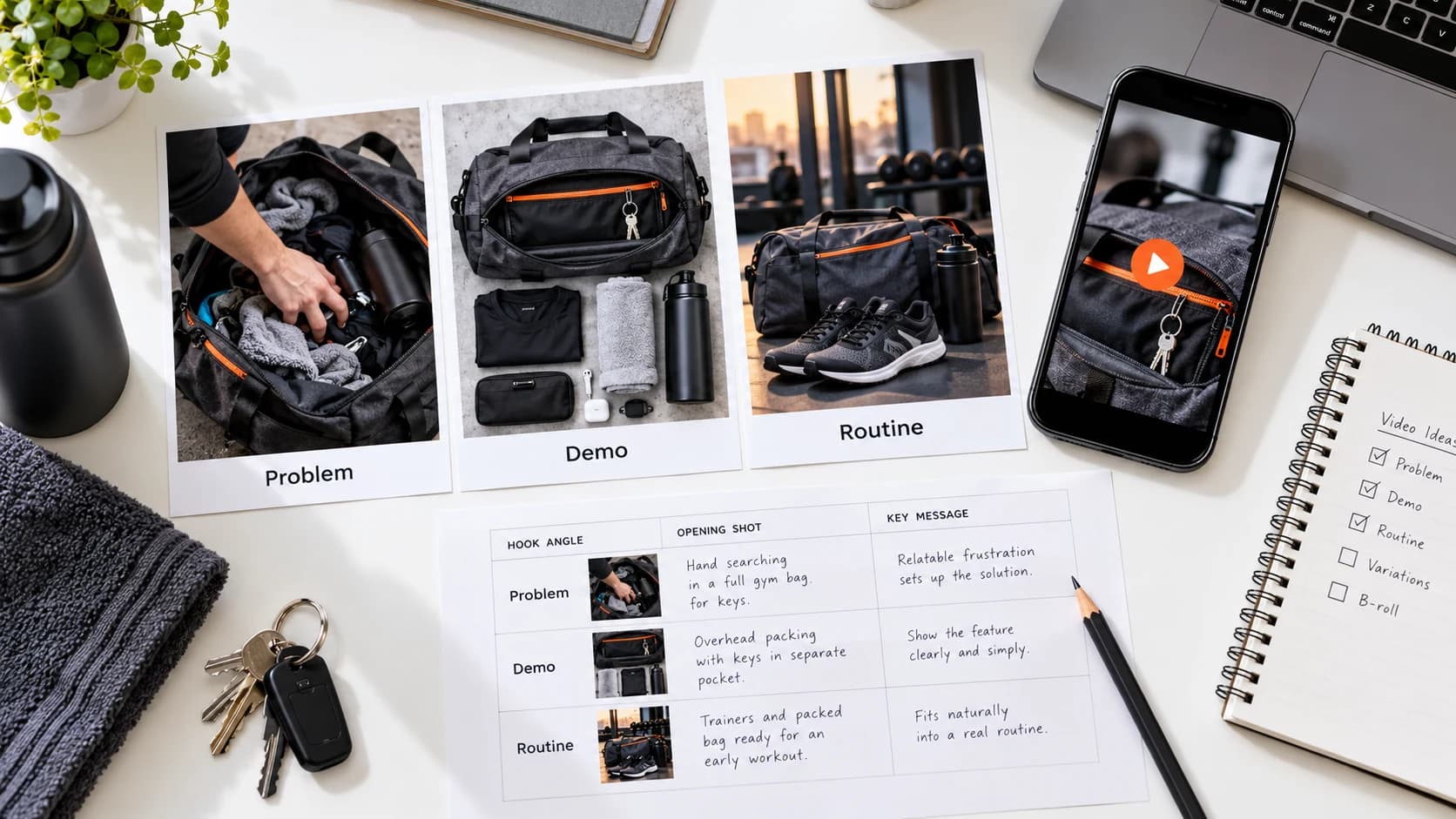
Use your workspace projects and Assets to keep references and generations organized. Once you have a usable shot, try one deliberate variation: a closer camera, a simpler action, or a different setting. For a product-focused next step, follow our product demo tutorial.
- Does the result match the single action in your brief?
- Are product details consistent throughout the clip?
- Does the framing leave room for your final captions?
- What one change would make the next generation more useful?
Ready to try it? Open Supaviral Studio or explore the plans.